How to Make a Graph in Google Sheets
Learn how to make a graph in Google Sheets to better represent, organize, and structure your data.
![[Featured Image] A person shows a colleague how to make a graph in Google Sheets on their laptop.](https://d3njjcbhbojbot.cloudfront.net/api/utilities/v1/imageproxy/https://images.ctfassets.net/wp1lcwdav1p1/3zLgITugGQZK9wHEf3QUZt/5985833df4f5ad8d91dbae0cb6ce6ce5/GettyImages-1677970621.jpg?w=1500&h=680&q=60&fit=fill&f=faces&fm=jpg&fl=progressive&auto=format%2Ccompress&dpr=1&w=1000)
Key takeaways
Graphs are an effective way to display your data and trends, especially when you're working with complex or large data sets.
To set up a graph in Google Sheets, you can follow these steps: open your Google Sheet, select your data, select Insert > Chart, choose your chart type, and customize the chart.
Charts and tables are two alternative ways to represent your data without using graphs.
You can use graphs in your data visualization to help viewers quickly interpret the information you're presenting.
You can create and customize a graph in your Google Sheet and learn the best practices for displaying your data through graphs. To explore more about data analytics and presentations, you can enroll in Google’s Data Analytics Professional Certificate, where you can learn how to visualize and present data findings in dashboards, presentations, and commonly used visualization platforms.
How to make a graph in Google Sheets
To make a graph in Google Sheets, follow these steps:
Open your Google Sheet.
Select your data.
Select Insert > Chart.
Choose your chart type.
Customize the chart.
Now, let’s break down these steps further.
1. Open your Google Sheet.
Before you can create your graph, you need to open the Google Sheet that has your data.

2. Highlight your data.
After opening your Google Sheet with the data you want to make into a graph, you need to highlight the data. In the image below, the selected range is from cell G1 to cell G11.

3. Click on the Insert menu.
Click on the Insert menu at the top left of your Google Sheets screen and choose the Insert > Chart option.

4. Locate the chart editor.
From here, a chart editor will open on the right side of the screen. In the image below, you can also see the chart inside a box in the center of the sheet. This lets you preview the chart when you start making selections in the chart editor.

5. Choose a graph type.
Once the chart editor is open, you can choose a graph type in the Setup > Chart type box at the top of the chart editor. In the example below, we show a line chart, or line graph, selected.

6. Customize your graph.
In the chart editor, you can customize your graph in several ways. For example, in the Customize tab, you can change the graph style, axis labels, legend, ticks, and gridlines. If you have two sets of numbers, you can choose which set of numbers is represented on the X-axis and which is represented on the Y-axis.

Best practices when making a graph
When making a graph in Google Sheets, you should consider the following tips to best represent your data:
Choose the right type of graph: When selecting a graph, consider factors like the size of the data set, number of variables, and the audience you're presenting to when selecting a graph.
Include labels: You should label your axes, add a specific title, and include markers to show the values of data points. This helps to ensure your data is represented accurately.
Update the graph with new data: As you get more data, you should update your graph to represent the new information. You can right-click or double-click on the chart and click Setup > Data range to select new data points.
Alternative ways to represent your data
Depending on the type of data you have, you can choose several different ways to represent your information. Charts and tables are two ways that you can represent your data without using graphs.
Read more: How to Sync Google Sheets with Google Calendar
How to make a table in Google Sheets
You can create a table by highlighting your data before navigating to Insert > Chart and opening the chart editor. From here, click Chart type and scroll down to the bottom to find the section labeled Other. In that section, locate the image labeled Table chart and click on it.

How to make a chart in Google Sheets
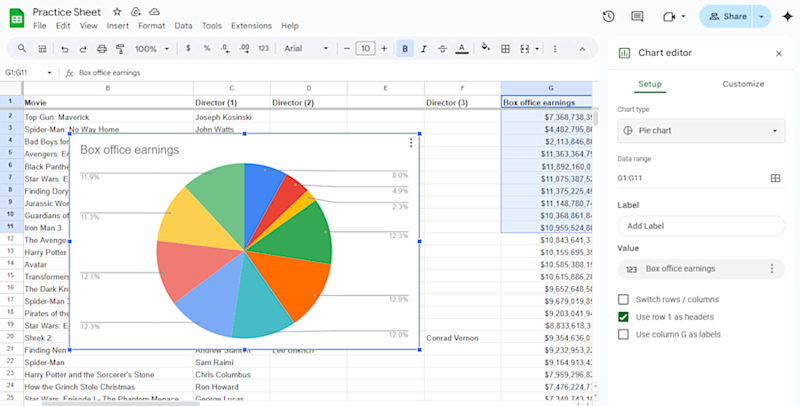
The chart editor allows you to create different types of charts. Highlight your data before navigating to Insert > Chart and opening the chart editor. From here, click on Chart type and choose your option. You can choose different styles and play with visual elements until you find the format that you enjoy best. Below is an example of a pie chart.
How to make a double bar graph in Google Sheets
To make a double bar graph in Google Sheets, you will follow the steps laid out above. However, after setting up your data and making your way to the chart editor panel, choose the Chart type dropdown and select the option Column chart. You can then click the Customize tab in the chart editor, where you can update the title, axis titles, colors, and more to build your graph to your preferences.

Explore more about data visualization with free resources
Subscribe to our weekly LinkedIn newsletter, Career Chat, to follow industry trends, career resources, and skill-building opportunities. Then, explore free data visualization resources to optimize your professional growth:
Watch on YouTube: The Future of Data Visualization: AI & Automation Trends
Start learning: Getting started with data visualization + types and tools
Accelerate your career growth with a Coursera Plus subscription. When you enroll in either the monthly or annual option, you’ll get access to over 10,000 courses.



Coursera Staff
Editorial Team
Coursera’s editorial team is comprised of highly experienced professional editors, writers, and fact...
This content has been made available for informational purposes only. Learners are advised to conduct additional research to ensure that courses and other credentials pursued meet their personal, professional, and financial goals.